Google

02 November 2018

Automate Tasks for New Employee Equipment

SharePoint iconThis week, I have published two new Tips articles on automatic task creation with flows and with workflows. Each article has two demos, as I describe an easier flow/workflow as well as a more advanced one that gives many benefits in the long run.

Equipment for new staff
When new staff joins an organization, there are certain things that always have to be done. The new employees will for example need some equipment, and the people responsible for arranging the equipment needs to be informed. This is a situation I have chosen to automate in my new articles.

Below I have included the two video demonstrations from the Flow article about automating tasks for new employee equipment, but if you prefer using a workflow, please study the Workflow article about  automatic task creation instead.

Hard-coded or dynamic?
You need some practice before you can create a really good flow or workflow, but it is of course better to automate business processes in a basic way than to not automate them at all. One common issue is how much you should hard-code.

It is often easier to hard-code data than to use dynamic content, and that is what I do with the equipment items in the first demo.


With dynamic content the flow/workflow will be much more flexible and user friendly. In the second demo, the equipment items are entered in a SharePoint settings list, from where the flow/workflow fetches the values as dynamic content.

The benefit of using dynamic content from a settings list, is that data can be changed without affecting the automation. This means that users can change values in the settings list when needed without problems. The flow/workflow will continue to run as before. That is not possible with hard-coded values. If they are changed, the flow or workflow must be modified too.


Flow or workflow?
As I use the same scenario of new staff equipment for both a flow and a workflow, I will soon follow up this blog post with a post about SharePoint automation in general, where I also mention some advantages and drawbacks of these two automation tools. Stay tuned!

By Peter Kalmström
CEO and Systems Designer
kalmstrom.com Business Solutions

26 October 2018

Azure Edition of E-mail Converter Released

E-mail Converter for Azure and SharePoint logotype I am happy to announce the release of our first Azure product, E-mail Converter for Azure and SharePoint, an add-in/app that automatically converts e-mails into SharePoint list items. The solution uses a Scheduler in Azure to manage the e-mail conversion time.

E-mail Converter for Outlook and SharePoint was first
E-mail Converter for Outlook and SharePoint icon The Outlook edition of E-mail Converter has been in the market since 2010, earlier with the name HelpDesk OSP. We changed the name, because it was too limiting. It turned out that organizations use this Outlook add-in for all kinds of conversion of e-mails into SharePoint list items, not only for support cases.

E-mail Converter for Outlook and SharePoint requires Microsoft Outlook to be installed on each PC. With the Outlook edition, you can not only create SharePoint list items by converting e-mails but also create new list items. E-mails can be converted either manually or automatically, but the conversion process stops when the user logs off.

E-mail Converter for Azure and SharePoint
Azure-icon The kalmstrom.com team has now developed an Azure edition of E-mail Converter also, as many organizations require e-mail conversion to be a non-stop automatic process. This has been requested by many of our E-mail Converter users as well.

With E-mail Converter for Azure and SharePoint, you can have e-mails converted into SharePoint list items automatically 24x7. The solution supports all Exchange Web Service e-mails like Office 365, Windows Live and Microsoft Exchange. You must have a Microsoft Azure account to use the solution, of course.


Features
Many features are the same in both editions of E-mail Converter:
  • add ticket URL to converted e-mails
  • monitor multiple mailbox folders
  • transfer attachments and inline images from e-mails to SharePoint list items on conversion
  • keep e-mails concerning the same issue in one thread
  • merge related list items into one
  • generate Excel reports from list data
Scheduler
Azure Scheduler icon When you install E-mail Converter for Azure and SharePoint, it deploys three resources: App Service plan, Scheduler Job Collection and App Service. The Scheduler Job Collection is used to manage the e-mail conversion frequency in any way you want. By default, e-mails are converted every 5 minutes.

We use a free plan for the App Service, as it doesn’t affect the functionality of E-mail Converter, but we use a Minimum subscription to the Scheduler, which is EUR 12 or USD 14 per month.

Monitor multiple folders of a mailbox
When you install E-mail Converter for the first time, you must log in using the credentials of the mailbox that you wish to monitor with E-mail Converter.

After logging in you only have add the mailbox folders that you want E-mail Converter to monitor. All e-mails in a folder added to the E-mail Converter will be automatically converted into list items in the SharePoint list you select. You can very well let E-mail Converter monitor several folders and distribute the e-mails to different SharePoint lists.

Trial and Subscription
kamlstrom.com Trial icon If you are looking for a solution that converts e-mails into SharePoint list items 24x7, I recommend that you try E-mail Converter for Azure and SharePoint. You can get the solution from the Azure Marketplace and evaluate it for 30 days. The demo above shows how to install and configure, E-mail Converter but in case you need assistance, our Support team is here to help you.

You can subscribe to E-mail Converter on a monthly or yearly basis. Our Sales department will be happy to assist you if you have any queries regarding the subscription.

By Dipti Francis
Executive Assistant
kalmstrom.com Business Solutions

18 October 2018

Re-use Flow to Merge Forms Data into SharePoint List

Microsoft Flow iconIn a new kalmstrom.com Tips article, I show how to re-use flows and how to create a flow that merges information from several SharePoint forms lists into one tasks list.

Common use case
Most companies have a department that handles a lot of different tasks for the rest of the organization. In the new Tips article, I have used this common organizational use case to show how a flow can merge data from different forms. I also demonstrate how to re-use a flow by first exporting it and then importing it and create a new flow from it.

My imaginary department manages delivery of flowers, desks or computers. I have built one form to handle all the flower orders, another for the desks and a third for the computers. As always when it comes to forms, there is a list behind it, and each time someone fills out the form, a new list item is created.

Easier ordering and handling
In this case the same people will fulfill all the orders, no matter what is being ordered. Having all data that users enter in the order forms transferred to the same SharePoint tasks list, means that the order handlers do not have to check in three places to find orders that all need to be tracked and managed in the same way.

For the users in the organization, it is easier to have three different order forms. They see one form especially for flowers, with only the relevant columns for flower orders, one for computers and one for desks.

Another benefit of using a flow like this, is that you don't have to create extra columns for all the different order needs. For example, you don't need to create a column in the tasks list to contain the ”Computer Size”. That info is fetched from the form and transferred into the Description of the task that is created.

Data from any online form
As I am a SharePoint nerd, I let my flow send data from order forms in a SharePoint site to a SharePoint tasks list. Similar flows can be used whenever people input data in an online form. It can be requests for a quote or survey results, and the services might be Excel Surveys or Microsoft Forms. Flow also supports multiple third party forms solutions that give input from users.

Export and import
The flow in my tutorial is used for three different forms, and these forms need one flow each. Instead of creating three flows, I only create the first flow from scratch. After testing that flow, I export it to my PC and import it from there as a new flow. Then I only have to change the applicable flow settings to get a second and third flow.


As I have mentioned earlier, I am working with a new book: SharePoint Flows from Scratch. Links to my Flow articles will be included in each chapter, but a book can of course give much more information in a more structured way.

By Peter Kalmström
CEO and Systems Designer
kalmstrom.com Business Solutions

15 October 2018

SharePoint Editions of Kanban Task Manager Updated

Kanban Task Manager for SharePoint logotype The SharePoint editions of Kanban Task Manager have been updated with a new view and the possibilities to add multiple responsibles on a single task and create checklist templates.

Kanban Task Manager helps a workgroup to collaborate on projects and tasks on a virtual kanban board in SharePoint or Outlook. For SharePoint we offer two editions: sandboxed solution and add-in. Kanban Task Manager has several features to manage the tasks efficiently:
  • Color code tasks or projects.
  • Drag and drop tasks between phases as work proceeds.
  • View tasks related to multiple projects on one kanban board.
  • Create checklists in complicated tasks.
  • Keep track of the work done with a time logging feature.
  • Generate Excel reports that show statistics on tasks management.

Updated version with enhanced feature
We always welcome enhancement suggestions from subscribers, and we try our best to add all the useful features that are requested. As Kanban Task Manager is one of our most popular products, users send us many ideas, and the features in the new versions are some of them.

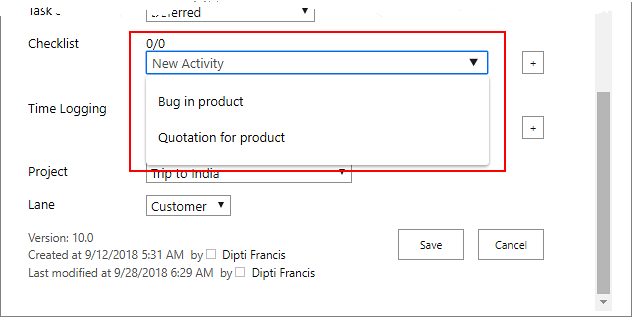
In a previous version of the Kanban Task Manager SharePoint editions we added a Checklist feature, that helps users to break down a complicated task into checklist steps. We have been upgrading this feature since then, so now you cannot only create checklists but also checklist templates.
Checklist-templates icon icon
Creating a new checklist for each task is inefficient when is the steps are the same for similar tasks. With the new feature, the Kanban Task Manager admin can create checklist templates for tasks where the same steps must be performed. Users can then select among the templates when they start working with a task or create a new checklist if none of the templates is suitable.

Multiple Responsibles
In organizations or teams it is common that more than one person works on a single task. Many users of Kanban Task Manager have therefore requested a possibility to assign a single task to multiple team members.

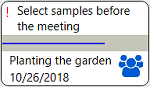
Multi-headed icon The updated Kanban Task Manager gives the possibility to add multiple responsibles to one task. In that case, the task card will have a multi-headed icon instead of the responsible person's photo.

Not Assigned view
There are various views in Kanban Task Manager where you can see the tasks on the basis of month, year, projects, responsible and their working status. This time a new view has been added to Kanban Task Manager: the ‘Not Assigned’ view.

The ‘Not Assigned’ view displays the unassigned tasks along with their descriptions. The view also shows all people who have been assigned tasks earlier, so you only have to drag and drop a task to assign it to a team member.

Upgrade and Support
kalmstrom.com Upgrade icon We always recommend our customers to use the latest version of our solutions, and upgrades are always included in our subscriptions. If your organization is a subscriber to a Kanban Task Manager SharePoint edition, you can download the updated version from the kalmstrom.com website.

Our Support team is always here to help you, if you need assistance in upgrading the solution.

Trial and Subscription
kamlstrom.com Trial icon You may download the full version of one of the Kanban Task Manager SharePoint editions from the kalmstrom.com website and evaluate it for 30 days without any obligations.

We have separate manuals for both the editions, that explains the solutions in detail. In addition to that, we also have video demonstrations by our CEO, Peter Kalmstrom, that can help you in understanding and evaluating the solution better.

In case you are new to Kanban Task Manager and need a skilled person to install and configure the solution, you may take advantage of our experts, who can do the work for you in a paid remote session.

Kanban Task Manager can be subscribed to on a monthly or yearly basis. You are always welcome to contact our Sales department in case you need assistance.

By Dipti Francis
Executive Assistant
kalmstrom.com Business Solutions

09 October 2018

Enhance SharePoint Search with Update Title Flow

SharePoint icon Data in Title columns is prioritized in the SharePoint Search, but in many library documents the titles are inaccurate or not filled out at all. In a new article in the kalmstrom.com Tips section, I describe how to create a flow that sets the title to the same as the file name. That will enhance the search results considerably, because document names are often descriptive and give relevant information on what the document contains.

When you make a search in SharePoint, the title hits are displayed on top. In SharePoint lists, the title is mandatory to fill out and is therefore never overlooked. In document libraries, however, the title is rather hidden, and it is a common problem that files are not given a title at all, or have non-descriptive, automatically set titles like "Document" that does not help the search at all.
Microsoft flow to set title in SharePoint library
In file systems, the titles don't have the same importance as it has in SharePoint, so files that are imported to SharePoint libraries often lack titles. Furthermore, the properties of such uploaded files do not open automatically. Instead, users must actively open the properties and add a title, and most users don't do that.

An easy way to solve the title problem is to let a flow set the value in the Title column to the same as in the Name column. The name is hopefully relevant, so this flow solves the problems with non-existing as well as irrelevant titles.


In the demo above, I have used the trigger "when an item is created or modified". This trigger is suitable to use in a library that already contains a lot of files that need to have a better title. In Edit mode, you can just add a dummy title and then drag it down the Title column of all files. They are then modified, and the flow will update the column and replace each dummy title with the value in the file's Name column.

Microsoft Flow icon For a new document library, I would instead recommend the trigger "when an item is created". Then the flow will set the title to the same as the name for all new files – but there will also be a possibility to change the title manually, to something else than the name value, without having the flow thwart your modification. The rest of the flow will be the same, and all steps are listed in the article about the update title flow.

If you prefer to use a workflow, I have a Tips article with demos on both a list workflow and a reusable workflow that set the title to the same as the file name in SharePoint document libraries.

By Peter Kalmström
CEO and Systems Designer
kalmstrom.com Business Solutions