Google

31 August 2018

Pivot Explorer for SharePoint List Items Released

Pivot Explorer logotype Today I am happy to announce the release of a new kalmstrom.com product: Pivot Explorer for SharePoint Lists is a SharePoint add-in that helps users explore, analyze and visualize list data directly in SharePoint, without exporting it to Excel.

Explore SharePoint list data
Pivot Explorer for SharePoint Lists is designed for workgroups or organizations who store data in SharePoint lists. With the help of Pivot Explorer, users can visualize the list data online.

The Pivot Explorer add-in makes data exploration flexible, as it supports a range of multidimensional charts and tables.

For numerical data, various aggregate functions like count, average, percentage and more can be applied to get sum details for different parameters.


Save or export views
Users can save and load their favorite views with just a few clicks and make them available to all users of the site. The current view can also be exported to Excel, image or PDF.

kamlstrom.com Trial icon Trial and Documentation
If your organization is looking for an option to explore SharePoint data effectively, I recommend that you try Pivot Explorer. For evaluators who don’t want to use their personal data, we have given an Example list with some data you can play around with.

We give full support during the 30 days free trial, so you don’t have to hesitate to contact our Support team whenever you need assistance. Please also study the Pivot Explorer manual, which explains the features and functionality in detail.

Subscription
You may subscribe to Pivot Explorer on a monthly or yearly basis. Our subscriptions include free support and upgrades, and on top of that, an unlimited number of users and installations without any extra fees.

Welcome to contact our Sales Department in case you have any queries regarding the subscription.

By Peter Kalmström
CEO and Systems Designer
kalmstrom.com Business Solutions

27 August 2018

Flow Alerts With Links To SharePoint Items

Microsoft Flow icon In an earlier blog post, I announced a new Tips article about links in workflow generated e-mail notifications. Now I have created a similar links article for Flow.

Flows versus workflows
Microsoft Flow is a cloud based service, part of Office 365, so currently it cannot be used with SharePoint on-premises. Workflows, on the other hand, are created in SharePoint Designer and can be used with all SharePoint editions.

Enter in e-mail body
In the demo below, I create a flow that sends an e-mail notification when a new document is created in a SharePoint Online library. I paste links to one specific document in various modes into the e-mail body, and then I replace the specific parts of the link code with dynamic fields that can be selected in the flow editor. This way, the links will always point to the new document.

You may of course also write in the links and directly click on the dynamic fields you need, to insert them in their proper places in the link code. I had some trouble getting them in the right place with my method!


Beware of name changes
If you are using a link with the dynamic field "File name with extension", which I do in one of the links, you should be aware that the link will stop working if the filename is changed after the notification e-mail has been sent. Name changes of documents are especially common when users create new documents directly in the SharePoint document library. That document will automatically be named as "Document", "Presentation" and so on, depending on file type.

Hopefully users have learned to rename the document into something more descriptive, but if they are allowed to create new documents and not just upload them, the flow must be given a delay before it runs. That way users will have time to re-name their documents.

I hope my two tips about links in workflow or flow generated e-mails have been useful! People might forget or ignore notifications without links, but if they can interact with a new document by just clicking on a link, there is a much better chance that it is actually read.

By Peter Kalmström
CEO and Systems Designer
kalmstrom.com Business Solutions

13 August 2018

Add Links to SharePoint Workflow E-mails

SharePoint iconDo you use a workflow to send e-mail notifications about changes in a SharePoint list or library? In that case, you might be interested in my new Tips article where I show how to add various links to the e-mail body.

Built-in alerts
Automatic e-mail notifications are useful when you want to draw attention to changes in a SharePoint list or library. Microsoft has given an Alert feature for such e-mails, and it is very easy for users to turn on such alerts for themselves. However, these alerts give no possibility to customize the body of the e-mail.

Custom alerts
SharePoint Designer iconMany organizations prefer to create their own notification workflows, to have better control over when and to whom the e-mails are sent. A workflow also gives many options for customization of the e-mail body.

You can for example add links in the e-mail, so that the recipients quickly can reach various kinds of information. It might however be complicated to get these links to work as intended, so I hope my article in the kalmstrom.com Tips section will be helpful.

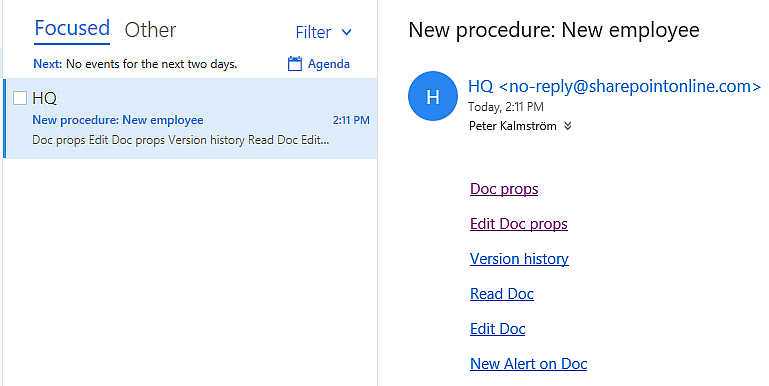
Workflow generated e-mail with links
Link code examples
In the demo below, I show how to build different links that might be useful in automatic e-mails. The demo is included in the Tips article, and the article also has all the link codes so that you can study them more easily.


In a later article, I will give examples on how to add links to e-mails that are sent by a flow. Flows are easier to work with than workflows, but they only support SharePoint Online and they also have some other limitations.

By Peter Kalmström
CEO and Systems Designer
kalmstrom.com Business Solutions

26 July 2018

E-mail Converter for Azure and SharePoint Works 24/7

E-mail Converter logotype Last week I told you about the update of E-mail Converter for Outlook and SharePoint, the add-in that creates SharePoint list items from e-mails. Now we will soon release E-mail Converter for Azure and SharePoint. The Azure edition will convert e-mails automatically 24/7.

HelpDesk OSP on a sever
E-mail Converter was earlier called HelpDesk OSP, and under that name it has been sold as an issue tracking tool to organizations all over the world. It has worked excellently for companies that only uses the add-in for manual conversion and for creating new SharePoint list items from Outlook.

For automatic conversion, the solution has been less perfect, because E-mail Converter for Outlook and SharePoint requires that each user has the add-in installed and that one of the Outlook instances is running. When customers want the conversion to take place even if no user has Outlook open, we have so far recommended them to install the add-in on a server where Outlook is running all the time.

The kalmstrom.com support team has used HelpDesk OSP/E-mail Converter this way on a virtual computer for many years, and it has worked fairly well. It has however not been a perfect solution, as there were downtimes when the VM had to be restarted. Now we have solved this issue by developing E-mail Converter for Azure and SharePoint.

Lower cost and better performance with Azure
When the QA team found E-mail Converter for Azure and SharePoint ready for it, we started to use the new edition for the kalmstrom.com support e-mails. Our callers have not noticed any difference, of course, but for the company it has meant improved operation and better economy, compared to using a virtual machine.

Azure icon
We are using a free plan for the E-mail Converter for Azure and SharePoint web site on Azure, so we only have to pay for the Scheduler, which is EUR 12 or USD 14 per month. That is only a fifth of the cost for the VM we used before!

During the month we have used E-mail Converter for Azure and SharePoint in production there have been no downtimes, and we don't expect any such issues to happen in the future. We have thus managed to combine increased performance with lowered cost, something that always makes me, as a business owner, feel very content :-)

For auto-conversion only
E-mail Converter for Azure and SharePoint can of course only be used for automatic conversion of e-mails. That is what we need for the support mail, E-mail Converter for Outlook and SharePoint icon but we will continue using the Outlook edition of E-mail Converter for manual conversion and to create SharePoint list items from Outlook. Both editions have their benefits and range of application.

E-mail Converter for Azure and SharePoint will be published in a few weeks, and we will of course announce the release here in the blog.

By Peter Kalmström
CEO and Systems Designer
kalmstrom.com Business Solutions

16 July 2018

HelpDesk OSP Becomes E-mail Converter

E-mail Converter logotype An update of the kalmstrom.com add-on that connects Outlook to SharePoint has been released. This time, the product has been renamed from HelpDesk OSP to E-mail Converter. As it can be used to create SharePoint list items from all kinds of e-mails, we found the "helpdesk" name too restricting. Changing product name is not something you do easily, but in this case we found it justified.

Convert e-mails manually or automatically
When HelpDesk OSP was first built, it was sponsored by a customer who was already using Folder HelpDesk for Outlook but wanted to have the helpdesk tickets in SharePoint instead. That influenced us when we named the new product, but later we have seen that customers find the product useful for other purposes than helpdesk and user support.


Finally we decided to change the name to better reflect what the add-in actually does, and the new name is E-mail Converter. With this product, users can convert e-mails manually and place them in any SharePoint list that has been added to the E-mail Converter.

E-mail Converter can also convert e-mails to SharePoint list items automatically, by monitoring an Outlook folder. An Outlook rule can direct certain e-mails to that folder, and users may of course also drag e-mails they want to convert to the folder. It is a good idea to use several monitored folders and let them convert e-mails to different SharePoint lists.

Create blank tickets
With E-mail Converter installed, users can also create totally new SharePoint list items from Outlook. They don't need to have SharePoint open, because the item will be shown in Outlook so that the details can be filled out.

When a helpdesk team uses E-mail Converter, they can either fill out the details for the person who reports a problem or select the caller from the organisation's global address book.

Everything is kept
If the e-mail has attachments or embedded images and links in the e-mail body, this is transferred to the list item. Converting an e-mail with E-mail Converter is actually a good way of getting embedded images into SharePoint list items. To add them directly in the item is more complicated.

Auto-upgrades
The fifth version of HelpDesk OSP - or the first of E-mail Converter - has more news than the name change. A big part of the code has been updated to work better in the future and make further enhancements possible.

A few improvements have also been added, for example the automatic upgrades. Once users get version 5 installed, they will no longer have to download new versions from the kalmstrom.com website. Instead E-mail Converter will give an upgrade prompt when there is a new version.

kalmstrom.com Upgrade icon If your organization has subscribed to HelpDesk OSP, you may upgrade it to E-mail Converter by downloading the setup file from the kalmstrom.com website.

Trial and Subscription
kamlstrom.com Trial icon Would your organization benefit from a solution that converts e-mails to SharePoint list items? In that case, I suggest that you try E-mail Converter. You may evaluate the solution for 30 days without any obligations. In case you need assistance during the evaluation period, do not hesitate to contact our Support team.

E-mail Converter can be subscribed to on a monthly or yearly basis. My colleagues at the Sales department are always here to help you, if you have any questions regarding the subscription.

By Peter Kalmström
CEO and Systems Designer
kalmstrom.com Business Solutions