
Google

02 January 2019

SharePoint Online Permission Settings

SharePoint iconSharePoint permissions are very easy to use if you accept the default settings. That can work for a small team, but if you want to have more control over what users can see and do, SharePoint permissions get more complicated.

In an updated article about SharePoint Online permissions in the kalmstrom.com Tips section, I explain how the permissions work by default and what you can do with them. I hope to warn for problems but also show the possibilities given by a good management of SharePoint permissions.

Permission levels
Microsoft has made it easy to set permissions by grouping connected permissions into permission levels. For example, if you want to give a user the right to view, add, update, and delete list items and documents, but nothing more, you don't have to give these four permissions separately. Instead you can set this user's permission to the pre-defined level 'Contribute'.

If none of the pre-defined levels fit, you can easily create your own permission level, and I show how to do that in the demo below, which is also included in the article.

Default Edit permission
In SharePoint Online (and SharePoint 2013 on-premise), the default permission levels for all users is Edit. This means that users by default can not only view, add, update, and delete list items and documents but also add, edit, and delete lists and libraries as well as create, edit and delete columns and views.

In my opinion this is a high level, but it is no problem as long as you are aware of it. Then you can decide if you should keep it or change it. Problems arise if admins are not aware of this default permission.
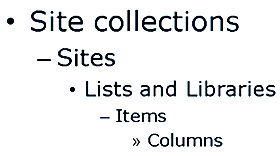
SharePoint hierarchy
Default Inheritance
Another default setting that can create problems is the inheritance. From the site collection and downwards, SharePoint is organized in a hierarchy. Sites by default inherits the same permissions as the site collection, the lists inherit the site permissions and the items inherit the list permissions.

This means that users who have Edit permission on a site by default also have Edit permission on all lists in that site, and they even have Edit permission on all items in each list.

If you don't like this, it is not difficult to break the inheritance. When you create a new site, you can just select another radio button than the default one in the settings and set new permission levels. Also for existing sites, pages and lists you can break the inheritance in the settings. This can be done down to file or item level.


Security Groups
In the Tips article about SharePoint Online permissions I also explain how security groups work. These groups of users who have the same permission level over sites simplify the permission management a lot. They are especially useful when you want to give people permissions on multiple site collections.

I hope my introduction to SharePoint permissions will give SharePoint admins who are new to the topic a better understanding of the problems and possibilities of SharePoint permissions. Refer to my book SharePoint Online from Scratch or to Microsoft for more detailed information on SharePoint permissions.

Peter Kalmström
CEO and Systems Designer
kalmstrom.com Business Solutions

28 December 2018

Monthly Project Reports with a SharePoint Flow

Microsoft Flow icon Managers often want to have monthly or weekly reports on various things, and if you are efficient you let a flow put together the report and send it. In a new article in the kalmstrom.com Tips section, I show how this can be done.

Flow that creates and send e-mail report
The flow I describe in the article and in the demo below, will generate an e-mail report with the total number of projects and the sum of the approved budgets for these projects. A 'Schedule - Recurrence' trigger will make sure that the flow sends an e-mail with this content on the same day every month.


Flow variables for calculation
A variable is like a container that holds different types of information, and you can use variables for storing, modifying and retrieving any kind of data. In my report generating flow, I first Initiate the variables (required in Flows), then I Increment them and finally I read the variable values into the e-mail body.
Microsoft flow generated e-mail

I initialize two variables, one for the number of projects in a SharePoint list and one for the total of the approved budgets. The values in these variables are calculated by two Increment variable actions. They are executed inside an 'Apply to each' action that loops through the project items.

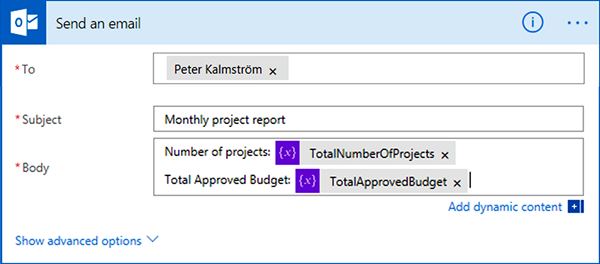
E-mail with calculated figures
When the 'Apply to each' has looped through the list, and the values for the Initialize variables have been calculated, the flow sends an e-mail with the figures for number of projects and total budget. The values are added as dynamic content in the e-mail body.

The total budget sum in the e-mail has no thousand separator. I decided to not include a thousand separator in the demo, because it is, at least currently, very complicated to add. The report will still work and give a correct result that is sent punctually each month, so I hope the manager will be content without the separator! SharePoint Flows from Scratch cover

My new book, SharePoint Flows from Scratch, will be published very soon, and the cover is already finished. I will come back and tell you more about it as soon as the book has been published on Amazon.

By Peter Kalmström
CEO and Systems Designer
kalmstrom.com Business Solutions

20 December 2018

SharePoint Flow for List Input from Outside

Microsoft Flow iconThe Microsoft Flow action "Send email with options" is useful when you need input by e-mail from people outside the organization. In a new article in the kalmstrom.com Tips section, I describe such a flow for e-mail input that also updates a SharePoint list.

In my example, the flow sends an e-mail to a legal counsel when a new item is created in a SharePoint Projects list. This counsel does not have access to the list, so he/she cannot directly see the new project and approve or reject it. Instead, the e-mail has a field for the dynamic content of the project description, and if that is not enough, the counsel has the option to ask for more information.
SharePoint flow e-mail options
Each option entered in the flow is shown as a button in the e-mail. My flow has the three options in the image above, and the help text in the flow also shows three options. You can however use this Flow action with more or less options too.

A flow like this one can of course be used for much more than approvals. It is convenient whenever you need a quick input or vote in cases where a form or something else more elaborate is not needed.


I have created this article and demo for my book SharePoint Flows from Scratch, which I have now left to the proof-readers. As soon as their comments are studied and we have a good book cover, we will publish the book as both e-book and paperback on Amazon.

By Peter Kalmström
CEO and Systems Designer
kalmstrom.com Business Solutions

11 December 2018

HTML in Flow E-mails

Microsoft Flow iconIn a new SharePoint Flows article in the kalmstrom.com Tips section, I have described how to enhance flow generated e-mails with HTML code.

Microsoft has recently added a new action to Flow: “Office 365 Outlook – Send an email (V2)”. It has a simple HTML editor that allows links and lists and changes in font, style and color. To use more advanced HTML in the Flow Editor, you have to add the code yourself.

A good option is to copy HTML code from an HTML editor and paste it into the Flow Editor. With the method I describe in my article, you can add for example tables and images to the body of an e-mail sent by a flow, or to the description field in a SharePoint list item. Just make sure that body code tags, for example style, are placed inside the body instead of in the head.

After pasting the HTML code into the Flow Editor, you can add the dynamic content you want to use directly in the code. The image below shows a simple table intended to be used in a SharePoint document library called "Procedures". The values for the name of the new file and its creator is added as dynamic content, while the rest of the table is hard-coded.
Flow e-mail table
This method for using HTML in a flow is described in detail in my upcoming book SharePoint Flows from Scratch, which I hope to publish very soon. In the meantime, you are welcome to read the Tips article about adding HTML to a SharePoint flow and watch the demo!


By Peter Kalmström
CEO and Systems Designer
kalmstrom.com Business Solutions
06 December 2018

New Edition of E-mail Converter Hosted on Windows Server

E-mail Converter for IIS and SharePoint logotype Today I am happy to announce the release of a new kalmstrom.com product: E-mail Converter for IIS and SharePoint. This solution, which is the third edition of E-mail Converter, is hosted on a Windows server and uses a Task Scheduler to manage the e-mail conversion frequency.

IIS Edition of E-mail Converter
E-mail Converter for IIS and SharePoint is a new addition to the E-mail Converter family that automatically converts e-mails into SharePoint list items, 24x7.
E-mail Converter for Azure and SharePoint icon
We recently released an Azure edition of E-mail Converter, which is also for non-stop automatic e-mail conversion but requires a Microsoft Azure account.

This time the kalmstrom.com team has developed an IIS edition of E-mail Converter for the users who don’t have an Azure account. After all, we want all our customers to benefit from E-mail Converter!

The IIS edition supports all Exchange Web Service e-mails like Office 365, Windows Live and Microsoft Exchange.

Hosted on a Windows server
E-mail Converter for IIS and SharePoint requires a website hosting provider, for example Internet Information Services (IIS) Manager, which is included in Windows 10. In the demo below, Peter Kalmstrom, CEO and Systems Designer of kalmstrom.com Business Solutions, uses Internet Information Service (IIS) Manager for the hosting.


Task Scheduler to manage conversion time
Windows Task Scheduler icon Both the Azure and the IIS editions of E-mail Converter require a Scheduler to manage the conversion frequency.

In E-mail Converter for IIS and SharePoint, the Task Scheduler in Windows needs to be set-up by the user manually. For that, the kalmstrom.com team has given a PowerShell command that periodically hits the E-mail Converter URL and subsequently converts e-mails.

You can find the PowerShell command on the E-mail Converter for IIS and SharePoint download page or in the E-mail Converter manual.

Trial & Subscription
If you are looking for a solution that automatically converts your e-mails into SharePoint tickets but don’t have an Azure account, then E-mail Converter for IIS and SharePoint is for you.

You of course would like to try the solution for a while, to make sure that it fulfills your needs. For that you may take advantage of our free service. We give a 30 days free trial of the full version with full support on all our products.

kamlstrom.com Trial icon You may download the E-mail Converter website folder for publishing, from the kalmstrom.com website and evaluate it for 30 days without any obligations. Our Support team is here to help you in case you need assistance during the evaluation period.

E-mail Converter can be subscribed to on a monthly as well as yearly basis. If you wish to subscribe to E-mail Converter, you may contact me or my colleagues at the Sales department. We will be happy to assist you!

E-mail Converter Manual
To make your evaluation easier, we have a manual that describes the features and functionalities of E-mail Converter in detail. You may easily download the files from the kalmstrom.com website.
Microsoft Word icon                       PDF icon
I am sure it will help you in evaluating the solution better. All the best with E-mail Converter!

By Dipti Francis
Executive Assistant
kalmstrom.com Business Solutions