Google

05 October 2018

Folder HelpDesk for Outlook Released with New HTML views and features

Folder HelpDesk for Outlook logotype The kalmstrom.com issue tracking tool, Folder HelpDesk for Outlook has been updated. This time we have added new HTML views and given a possibility to show the e-mail received date on the ticket.

Folder HelpDesk for Outlook
Folder HelpDesk is an Outlook add-on that helps a workgroup collaborate on support cases or issues inside Outlook. With Folder HelpDesk users can convert e-mails into tickets, either manually or automatically. Along with converting e-mails into tickets, Folder HelpDesk gives users more possibilities to work efficiently with those tickets:
  • fetch tickets from an online form, manually or automatically
  • keep all the e-mails related to the same case in the same ticket
  • make a call from inside a ticket via any desktop calling application
  • reply to an e-mail from inside a ticket
  • generate Excel reports on ticket data for analysis and statistics

Improved Design of HTML views
Among the many Folder HelpDesk features is the possibility to visualize tickets in different HTML views: Kanban, Month, Year, Timeline Responsibles, Timeline Incidents, Timeline Callers and Incidents.

In this version, the design of the HTML views is improved and has been made more user friendly. Now you can reach all the HTML views from a single dropdown.

Folder HelpDesk - HTML views

New Feature
Folder HelpDesk gives various options to customize the ticket form, among them the option to automatically save non- existent values, assign default values for minutes worked and more.

Now a new feature has been added to the ticket form settings: ‘Show e-mail received time in the ticket’. Several subscribers have asked for this feature, so we know that it will be appreciated.

kalmstrom.com Upgrade icon Upgrade
Our subscriptions include support and upgrades. If your organization is a Folder HelpDesk subscriber, you are welcome to upgrade your installation. You may download the setup file from the kalmstrom.com website.

kamlstrom.com Trial icon Trial and Subscription
If your team wants to cooperate on support cases in Outlook, I would recommend that you try Folder HelpDesk. You may download the full version of Folder HelpDesk and try it for 30 days without any obligations. Do not hesitate to contact our Support team, if you need assistance during your evaluation period.

Folder HelpDesk can be subscribed to on a yearly or monthly basis. Our Sales department is here to help you if you have any queries regarding the subscription.

This update was just minor, but the kalmstrom.com developers are working on a major new version with several important enhancements. I will come back and tell you more about them in a later blog post.

By Dipti Francis
Executive Assistant
kalmstrom.com Business Solutions

03 October 2018

SharePoint Approvals in Multiple Steps

SharePoint iconIn earlier blog posts I have described different ways to manage approvals of documents in SharePoint libraries. As an example, I have used a Procedures library where new documents need to be approved by another person than the author.
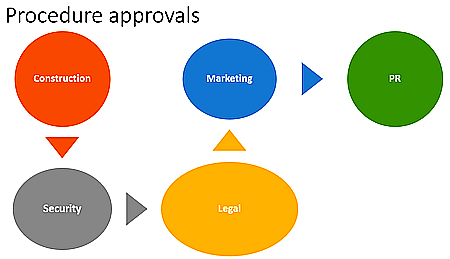

But sometimes one approver is not enough. In a new article in the kalmstrom.com Tips section, I suggest a solution for SharePoint document libraries where new files must be approved by several people.

SharePoint workflow
I use a SharePoint workflow to automate the multiple approval process, and the idea behind the workflow is that each approver is given a task to approve or reject the new document. When that task is completed, the workflow goes to next approver if the document is approved. If one of the approvers reject the document, the process is stopped.
SharePoint Designer icon
This workflow is a totally custom solution. I neither use the built-in approval status column nor any of the out-of-the-box workflows that Microsoft supplies.

The benefit of using a custom approval solution is that you have total control of the process. The downside (as you will see if you watch the video) is that it is rather complex and time-consuming to create. On the other hand I am using as much as five approvers. The workflow can of course be used for less people also.

Approvers in teams
Each approver in this example workflow belongs to a team, and all teams and approvers are stored in a SharePoint list. I use the team names in the workflow, so you don't have to modify the workflow if the person that approves or rejects documents must be replaced. The workflow will continue to run as soon as a new document has been added to the library.

Follow the process stages
The approval task for each approver is represented by a workflow stage. These stages are called "Waiting for [TEAM]", and if a team approves of the document, the workflow goes to the next stage.
Approval process

When I have created all the stages, I add two more stages: the Rejected stage and the All Approved stage. These stages both ends the workflow, but under different conditions. The Rejected stage is used when someone rejects the documents. The All Approved stage is used when all stakeholders have approved the document.

The benefit of working with stages in this way, is that everything is visible in the library. The approval status column shows "Waiting for [TEAM]", "Rejected by [TEAM]" or "All Approved", and in the document's version history you can see the whole process with details on when and by whom the document was approved or rejected.

Testing and error correction
The workflow I suggest is long and rather complicated, and when recording the demo below I made a few mistakes. To make the demo shorter I copied and pasted stages, and that also gave some errors.

I have chosen to include the testing and error fixing in the demo, as it can give valuable information to someone who tries the workflow.


Tips article
I have recorded this demo about approvals in multiple steps for my book SharePoint Workflows from Scratch. I have not finished writing it yet, but for now you can read the article in the kalmstrom.com Tips section. It has the demo and also a description of prerequisites and instructions on how to create the different stages.

By Peter Kalmström
CEO and Systems Designer
kalmstrom.com Business Solutions

26 September 2018

Automate SharePoint Approvals with Flow

Microsoft Flow iconWhen someone creates a new business document, it must often be approved by someone else in the organization before it is made available to more users. The approval process can be configured and managed in many different ways, but it is of course an advantage if it is automated.
In two new articles in the kalmstrom.com Tips section, I describe how a flow can be used to automate the approval process for files in a SharePoint Online document library.

The library approval setting
SharePoint document libraries have an approval checkbox under 'Versioning settings'. This feature is disabled by default, but when it is enabled, each new or changed document must be approved. Only after approval will it be shown to all users of that library. This setting has the advantage of preventing other users than the author and the approver from seeing non-approved document versions.

When the approval setting is enabled, a new column called 'Approval Status' will be added automatically. This is convenient, but currently this column cannot be used together with an "update item" action in a flow or workflow. It always has to be updated manually, and a flow or workflow can only automate the sending of an e-mail to the approver. In the demo below I show how to create such an e-mail sending flow.


Custom column for approval status
When you choose not to enable the approval setting but instead use a custom column for approval status, a flow or workflow can manage the whole process, including the update of the document library.

A drawback with a custom column is that the document can be seen by everyone even when it is not approved (if you don't set special permissions on it). In the demo below, I add a library update action to the flow that I created in the demo above.


The two demos above are included in a kalmstrom.com Tips article that also gives some more background and explanations. I recommend that you study the demos more closely there, if you are interested in trying one of my solutions.

Create a flow in the mobile
The Microsoft Flow mobile app makes it possible to create a flow like the one above in a mobile device. The demo below is included in a SharePoint Flows article that also gives step-by-step instructions. I use a custom column for approval status and show how the flow can be set to send an e-mail to the approver as well as update the document library.


Next article and blog post about business approvals in SharePoint will be about approvals in multiple steps, where several people in sequence must approve a new document library file.

By Peter Kalmström
CEO and Systems Designer
kalmstrom.com Business Solutions

18 September 2018

Flow for IM to Assigned

Flow icon SharePoint tasks lists are a good way to organize tasks within an organization, and it gets even better if you use a kanban board, like Kanban Task Manager, to visualize the tasks and the work process. When someone creates a task for another person, it is convenient to have a message about that sent out automatically.

Kanban Task Manager for SharePoint logotype In a new article in my SharePoint Flows series I show how to create a flow that sends a Skype message to a person who has been assigned a new task. This flow can be used whether you use the tasks list with Kanban Task Manager or not.

New task alerts
The SharePoint 'Alert me' command cannot be used to send notifications for new tasks to the assignee, but I have earlier published several Tips articles on how to use different kinds of workflows for e-mail alerts to the person who has been assigned a new task. Such automatic e-mails can also be sent automatically with a flow.

Sometimes an instant message is more efficient than an e-mail, and in the new Tips article I describe how to create a flow that sends a Skype message to the assignee. To make the flow more useful, I add a link to the new task in the message. Thus the assigned person just have to click on the link to reach the task.


Complex and simple flows
Flow is a versatile tool that can be used with a wide range of cloud based services, not only with SharePoint, to automate processes that need to be performed repeatedly. In some cases it can be rather complicated to create a flow, and I showed an example on that in the beginning of this month, when I wrote a blog post about a flow that sends e-mails based on list data and where attachments needed to be included.

Skype icon To create a flow that sends a Skype message when a new task has been created is a much easier process. If you have never before created a flow, this flow is a suitable one to start with. In my Tips article about the IM to assigned flow I have listed the steps as a further help to follow the demo.

By Peter Kalmström
CEO and Systems Designer
kalmstrom.com Business Solutions

05 September 2018

Flow that Sends E-mails Based on SharePoint List Items

Flow iconAs you probably know, the kalmstrom.com YouTube channel has many subscribers, currently nearly 15.000, and I am glad that my demos attract such great interest. I am often asked to create demos on specific topics, but I have no possibility to comply with all requests without charging for it.

However, a couple of days ago I read a question that really interested me: how to send e-mails from a shared mailbox with content based on SharePoint list items. If you don't allow e-mail attachments, this is easily managed with a flow that picks e-mail data from a SharePoint list item.

But this subscriber wanted to include attachments in the outgoing e-mails. That makes it a lot more complicated, and this is what intrigued me. I decided to find out how to manage the process the subscriber asked about – for my own sake! I began searching and found inspiration from several sources, but a blog post by Django Lohn put me on the right track. You can see the result in the demo below, and as usual there is also an article in the kalmstrom.com Tips section.

So, why did I find this question so interesting? It was not only that I did not know how to do it from the beginning. Letting users add e-mail data to a SharePoint list is in some cases better than letting them send from a shared mailbox:
  • Using a SharePoint list and a flow gives better control of what is sent.
  • The data of the outgoing e-mails is gathered in a SharePoint list, where it can be sorted, filtered, searched and displayed in different views – something that is more difficult to do in a shared mailbox.
  • You don't have to give a lot of people access to the shared mailbox. They only need permission to create items in the SharePoint list.
This demo is created for my upcoming book about SharePoint Flows, and it will be one of the most advanced ones. I have listed the Flow steps in the Tips article, so please give it a try!


By Peter Kalmström
CEO and Systems Designer
kalmstrom.com Business Solutions